Click "Patients" under Coordination tab to view patient list.
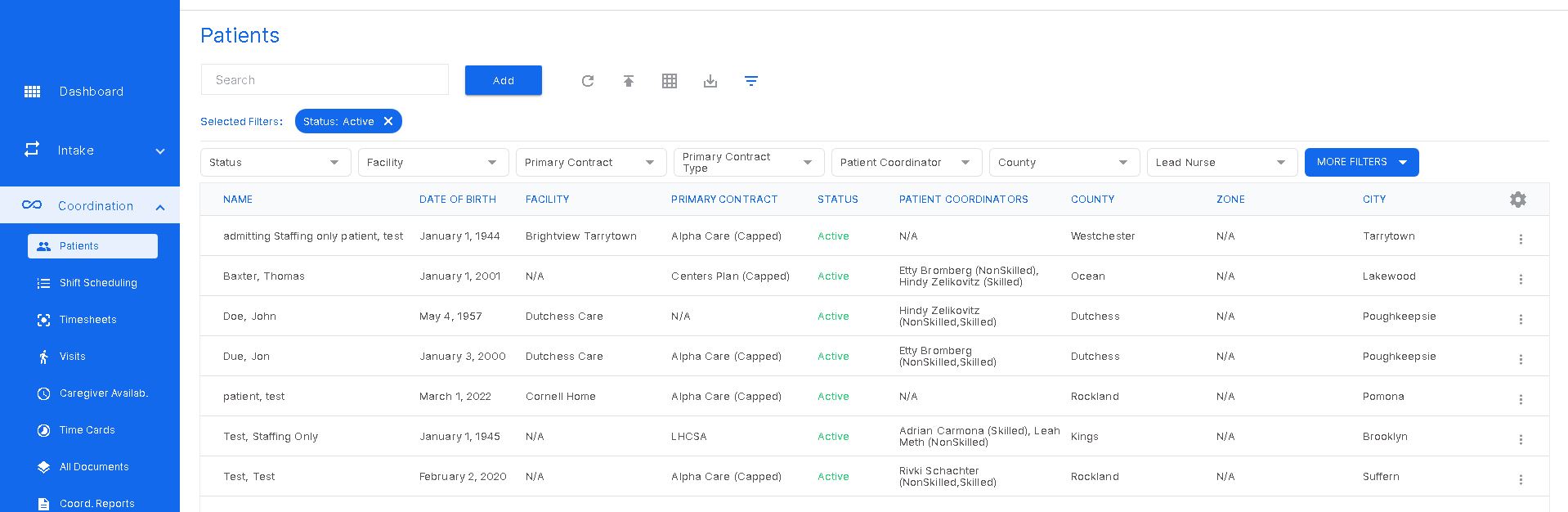
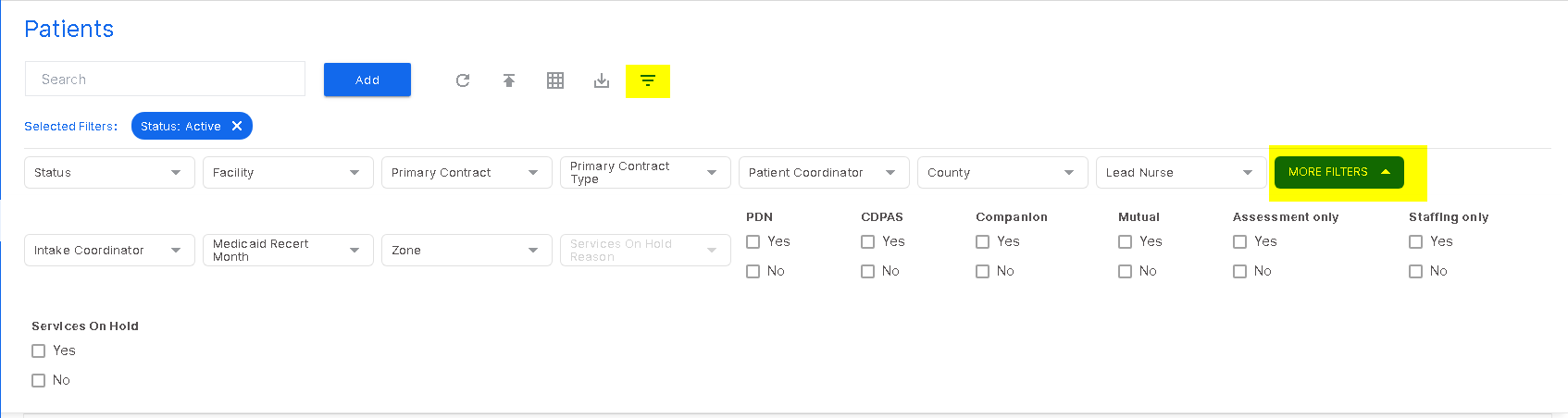
From here, click on "filters list" icon to refine your search. There are more filters under "more filters" icon.
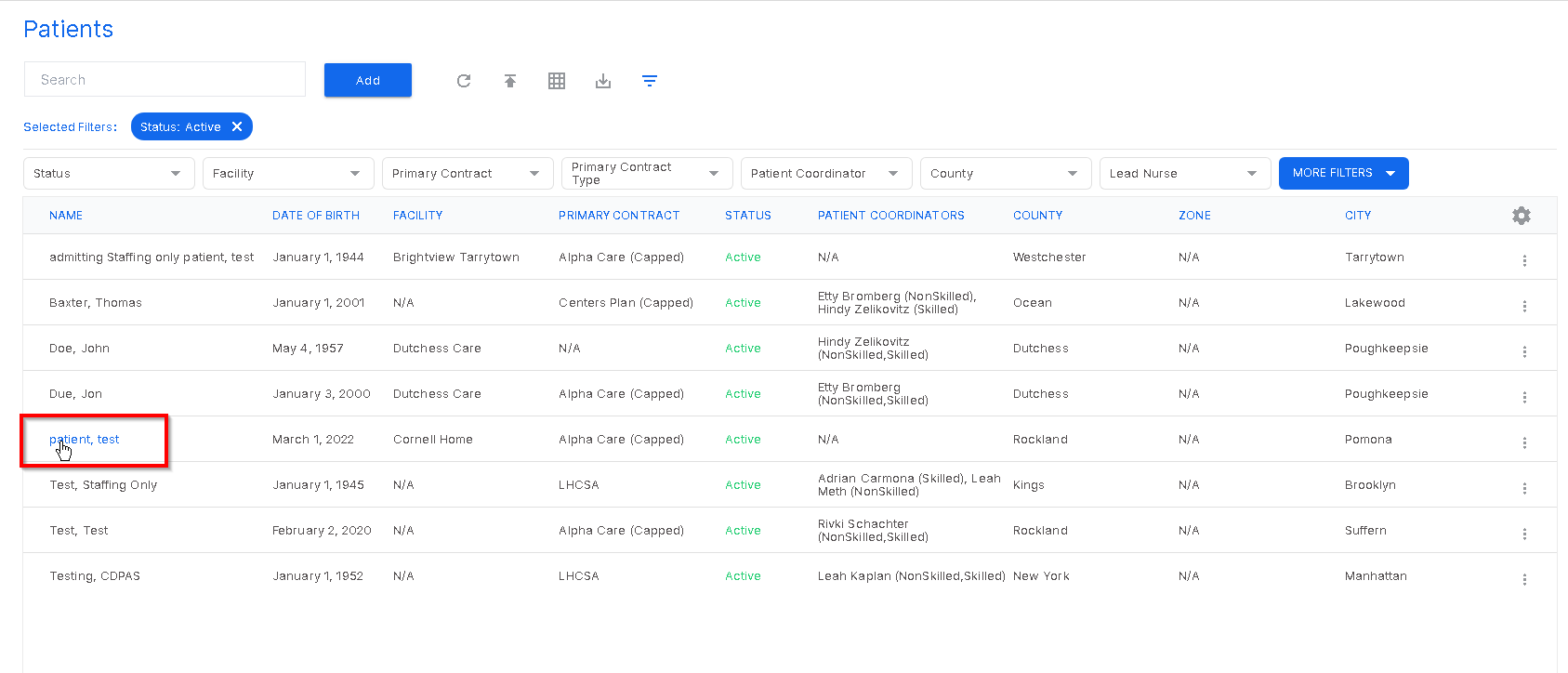
To get to a patient profile, simply click on the patient name.
The icons highlighted in the image below include the following functions: refresh the page, import patients (from an external place), customize table (which provides more filter options that optimize a search), export the list (excel) and filters (which displays or hides the filter list).
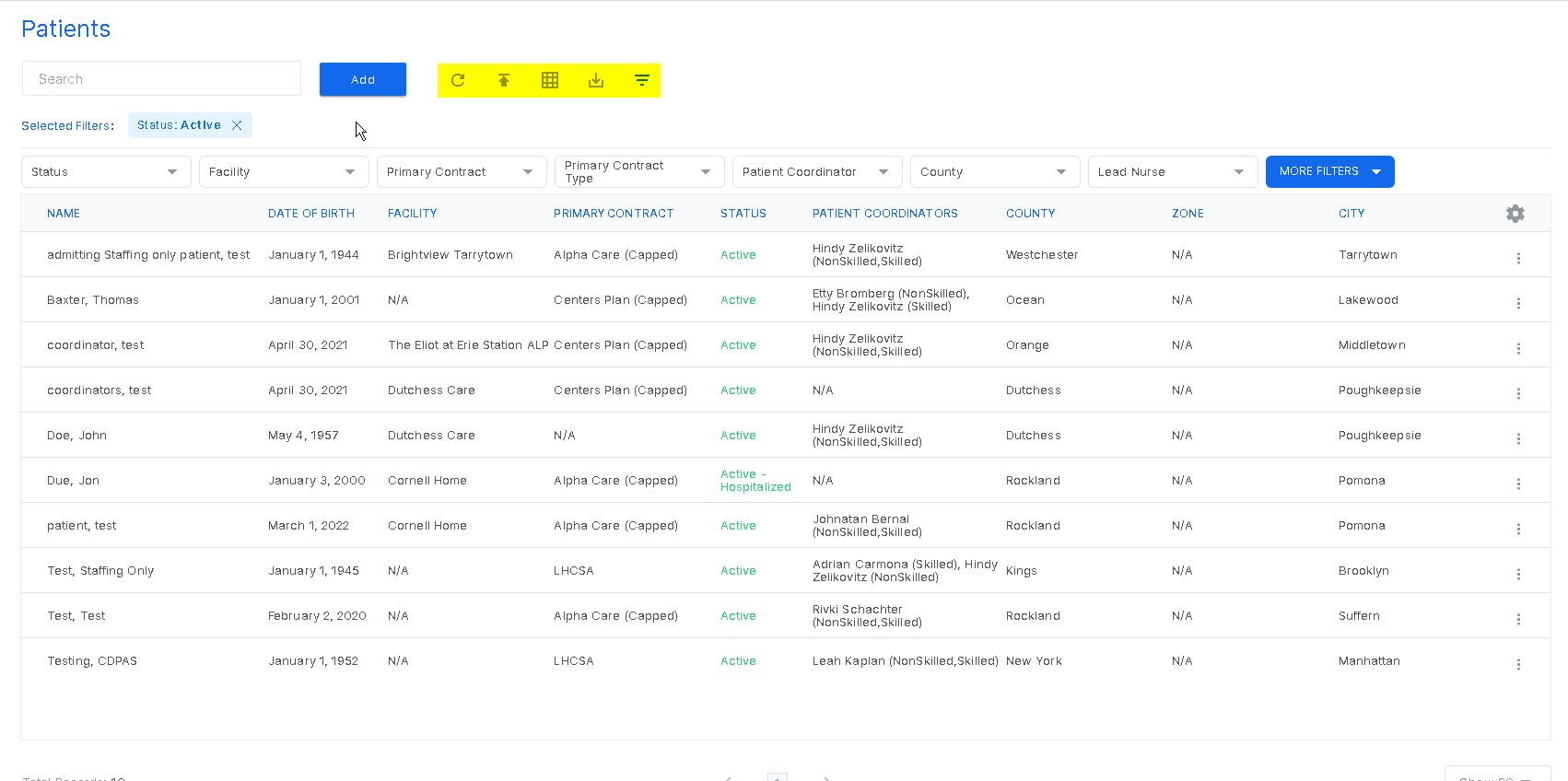
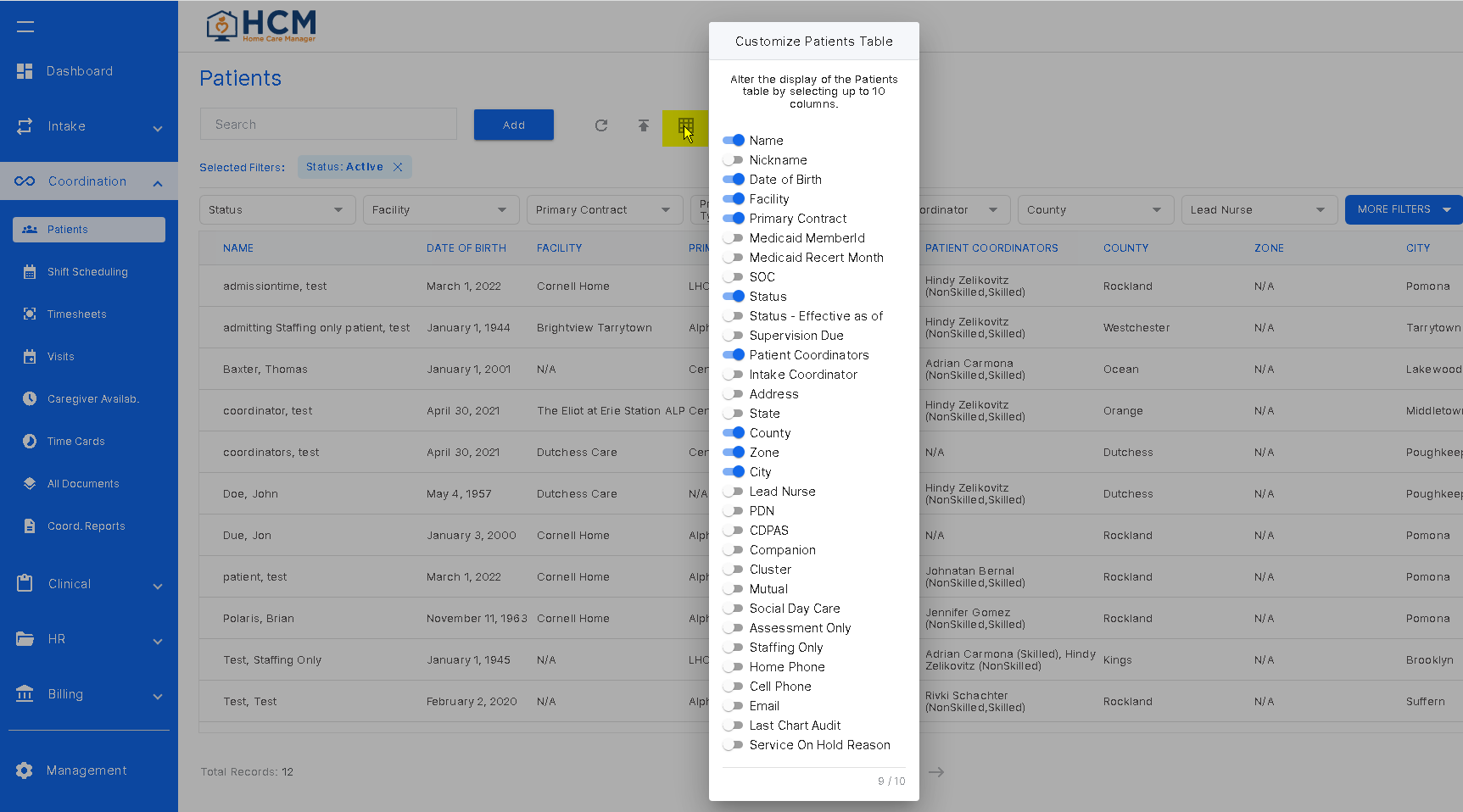
To add extra columns to the patient list, click the customize table icon to add or remove what is seen in the list.
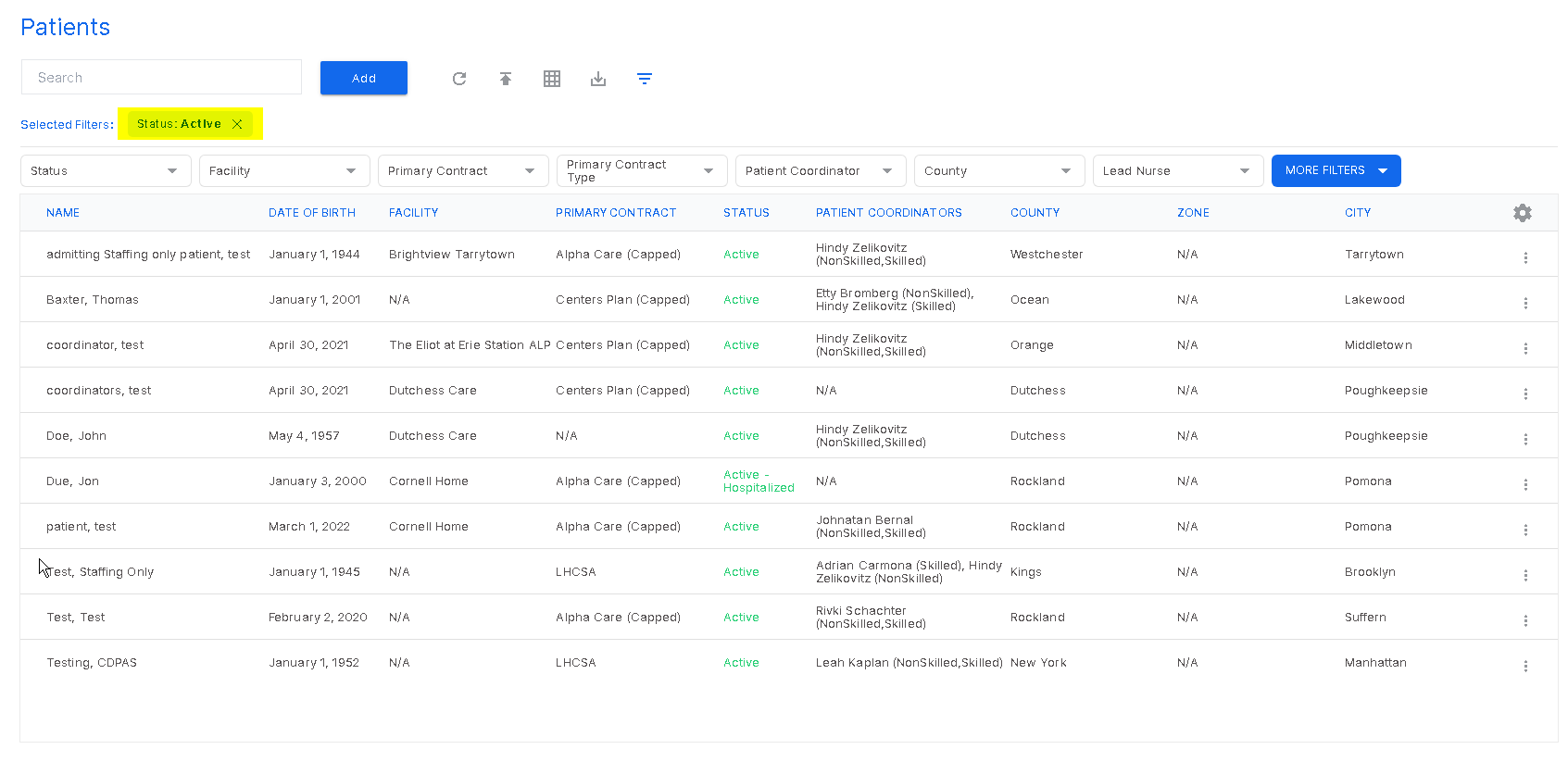
By default, the patient list is set to display patients with an "Active" status. Removing that filter "Active" button will display all patients whether they are discharged, deferred, or pending.
Was this article helpful?
That’s Great!
Thank you for your feedback
Sorry! We couldn't be helpful
Thank you for your feedback
Feedback sent
We appreciate your effort and will try to fix the article