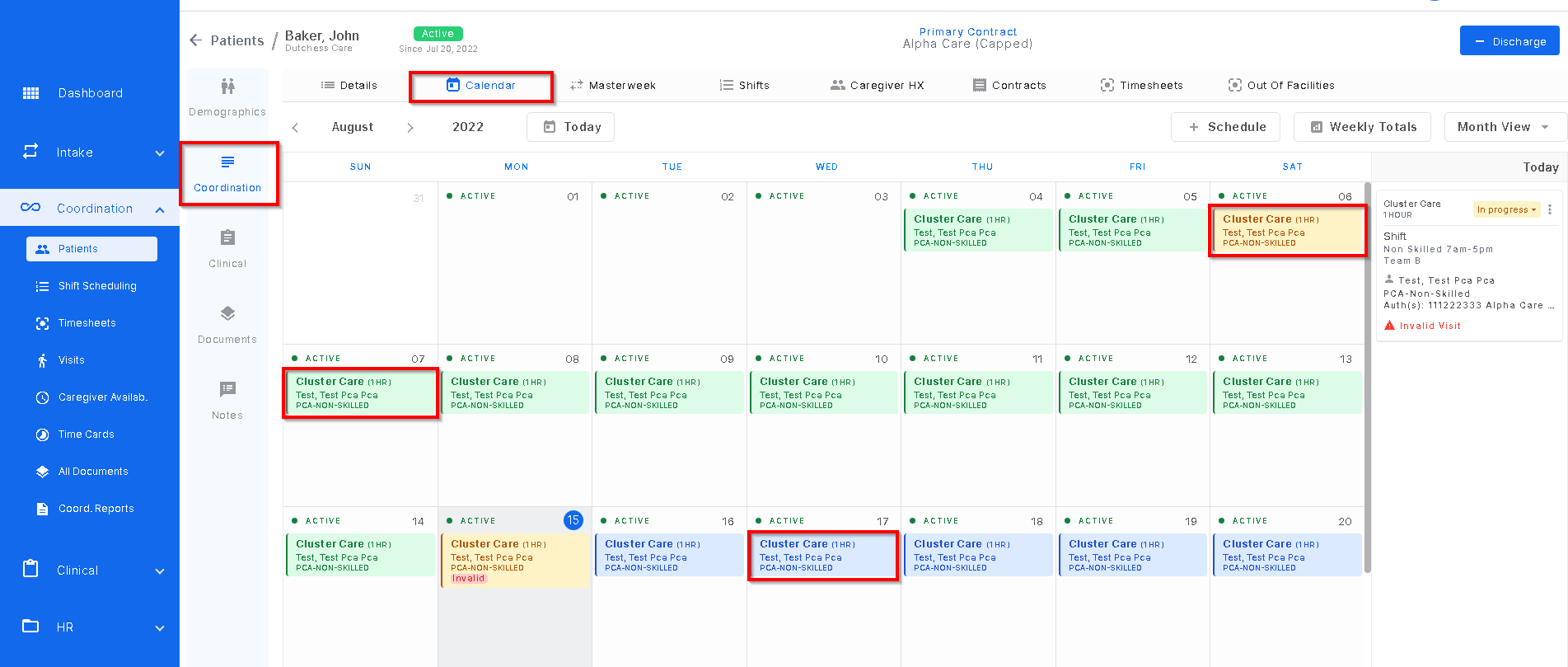
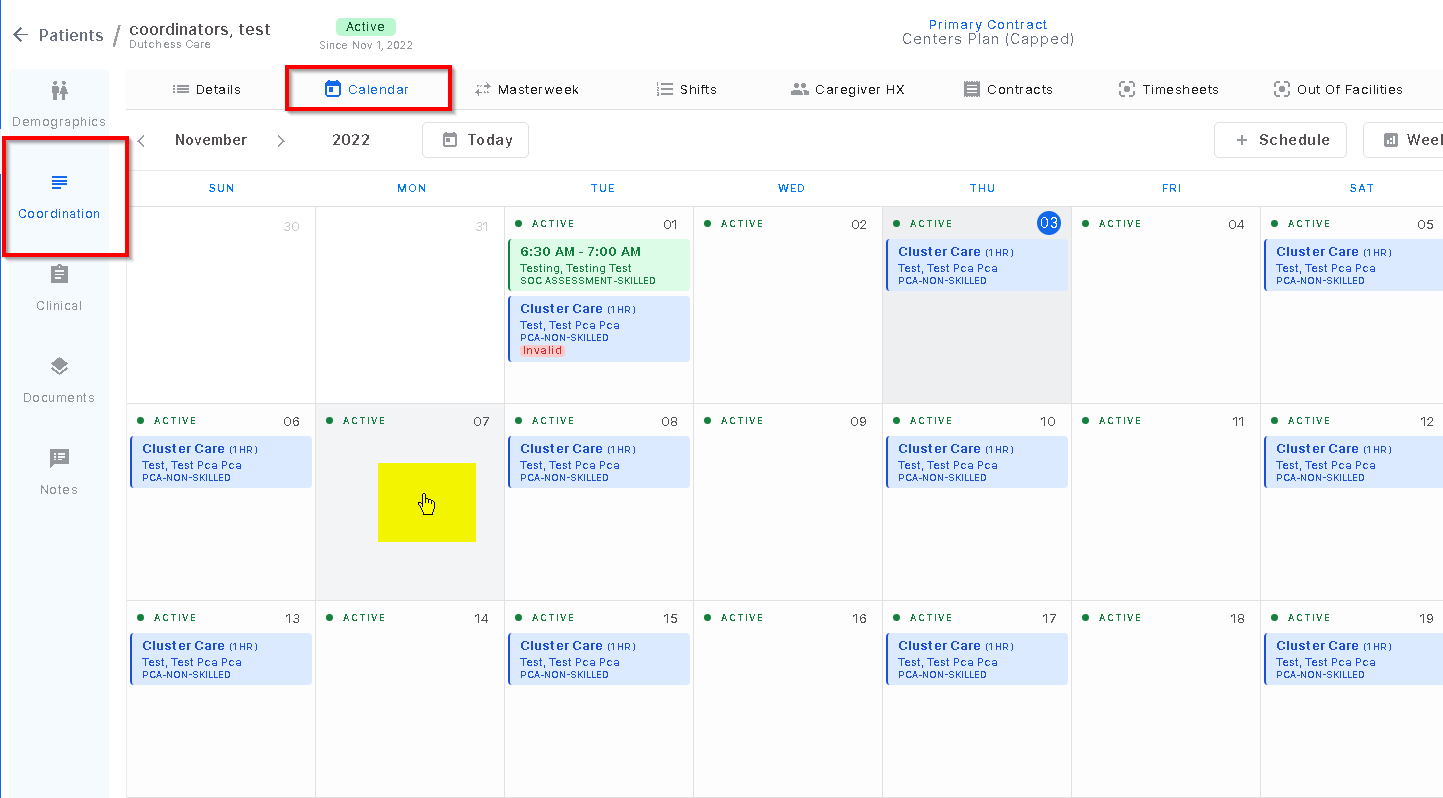
Patient calendar is located in the Coordination section within a patient profile. There are 3 different color coded visits on a patient calendar:
- Blue means the visit is scheduled, not yet confirmed, not in progress.
- Green means the visit is confirmed, has all the requirements attached (i.e. electronic timesheet, authorization, timecard, etc.) and is ready to be sent to billing and payroll.
- And yellow means the visit is in progress there is an incomplete or completed timesheet linked but has not yet been confirmed.
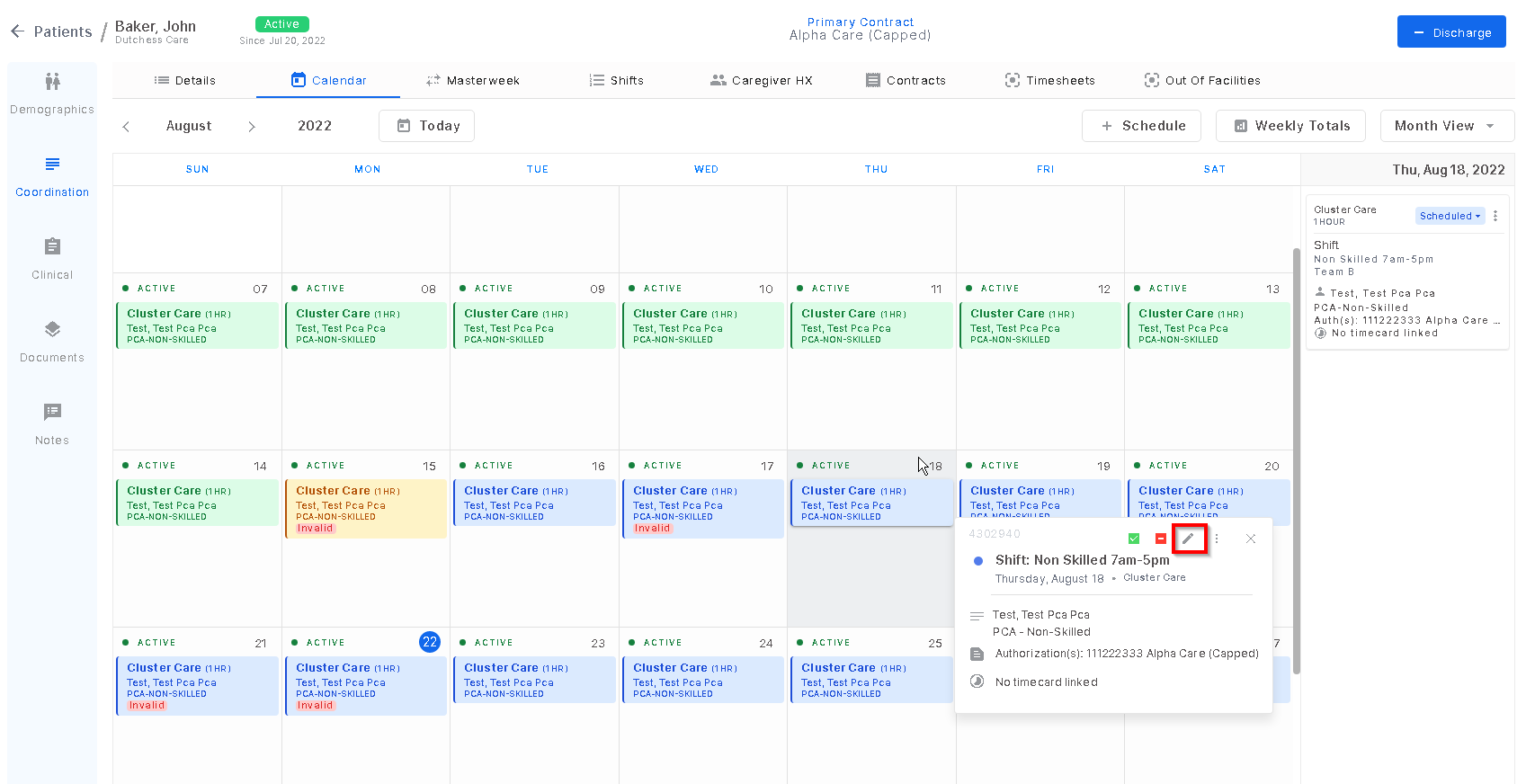
To edit a visit, click on the visit itself, and click the pencil icon.
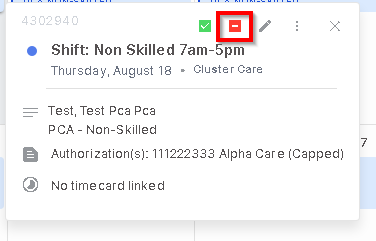
To miss a visit, click on the visit itself and click the red icon.
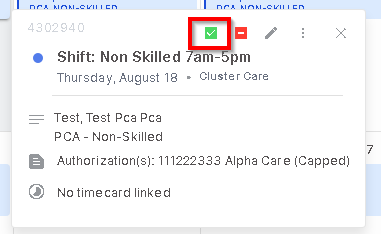
To confirm a visit, click on the visit itself and click on the green check mark icon.
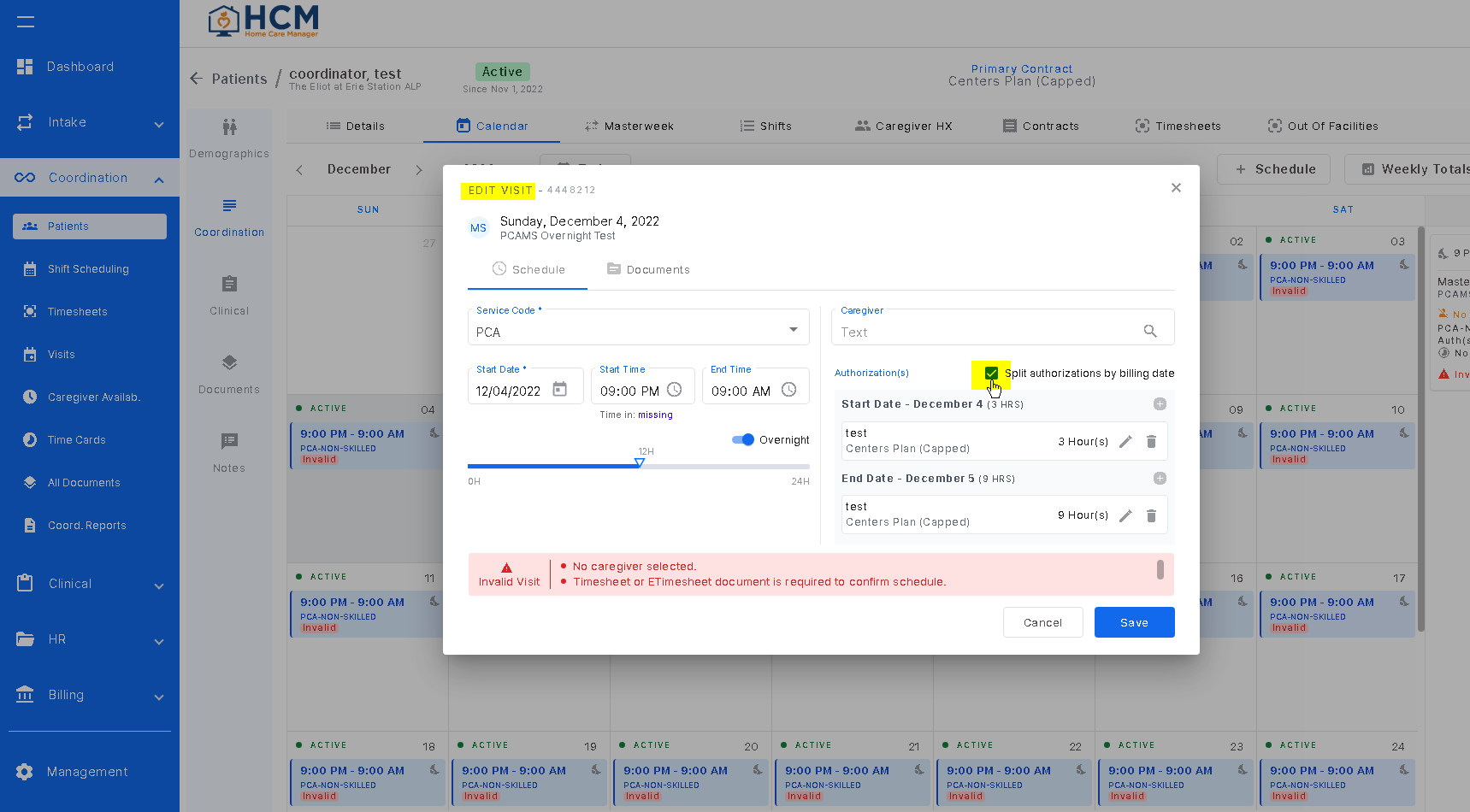
In the case that the patient has an overnight visit that needs the authorization to be split by billing date, edit the visit, add the authorization and click the check box that says "split authorization by billing date". The system will split the hours from the remainder of the visit start date and the remaining hours on the visit end date.
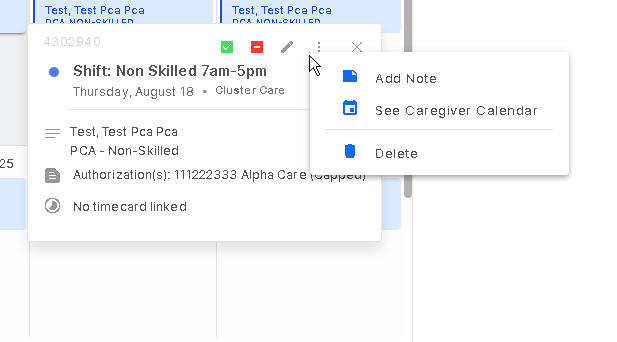
There are 3 dots on the visit itself that will open a screen to add a note to the visit, go to the caregiver calendar, and to delete the visit.
To add an individual visit, double click on the date desired on the patient calendar.
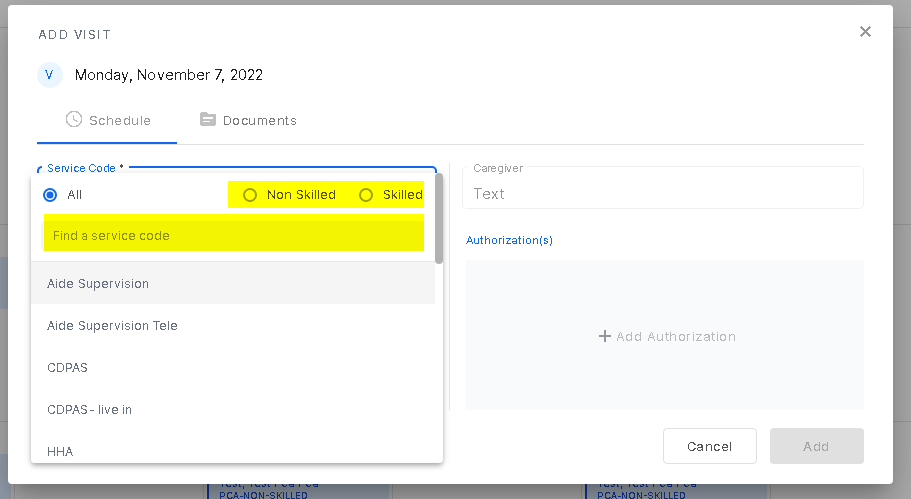
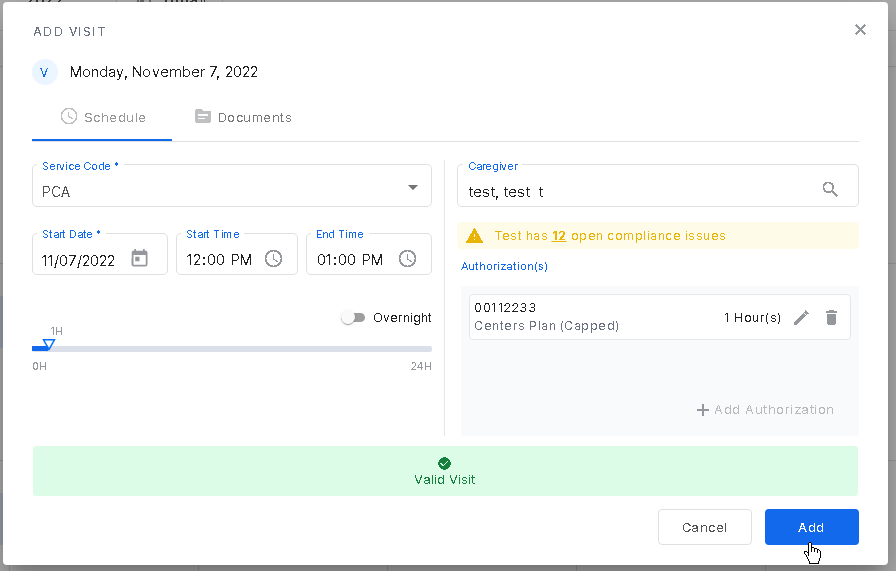
A screen will pop up for the user to add the required information.
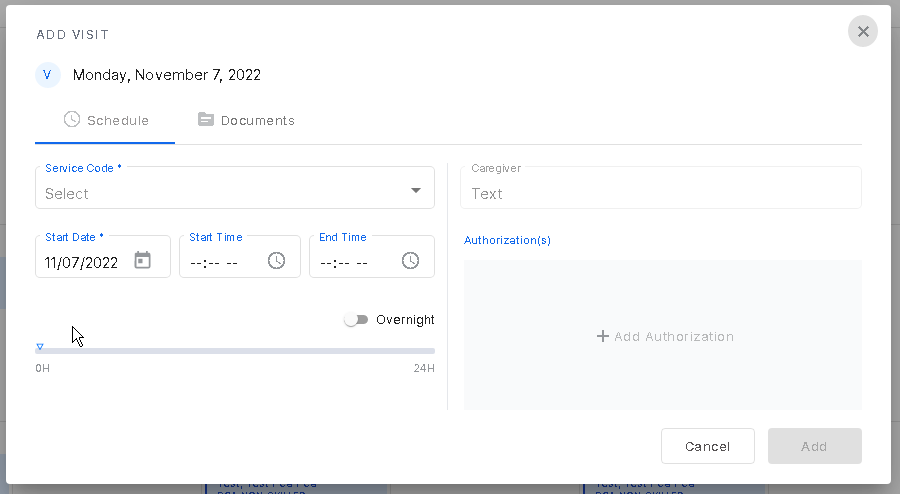
When clicking on the Service Code section, the system will allow the user to scroll to search or to type in the search bar for the service code desired. The user can also select Non Skilled or Skilled in the top right corner to optimize search.
Once all required information is entered, select "add" to complete.
Was this article helpful?
That’s Great!
Thank you for your feedback
Sorry! We couldn't be helpful
Thank you for your feedback
Feedback sent
We appreciate your effort and will try to fix the article