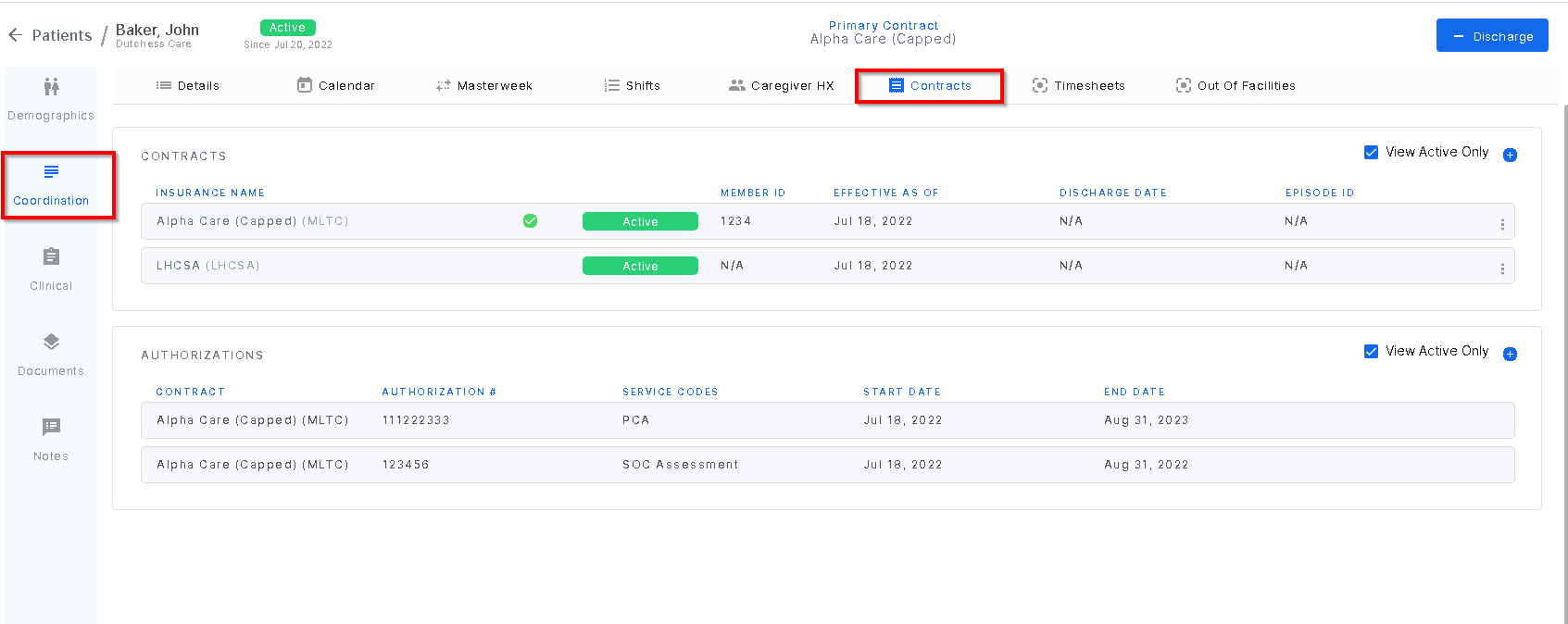
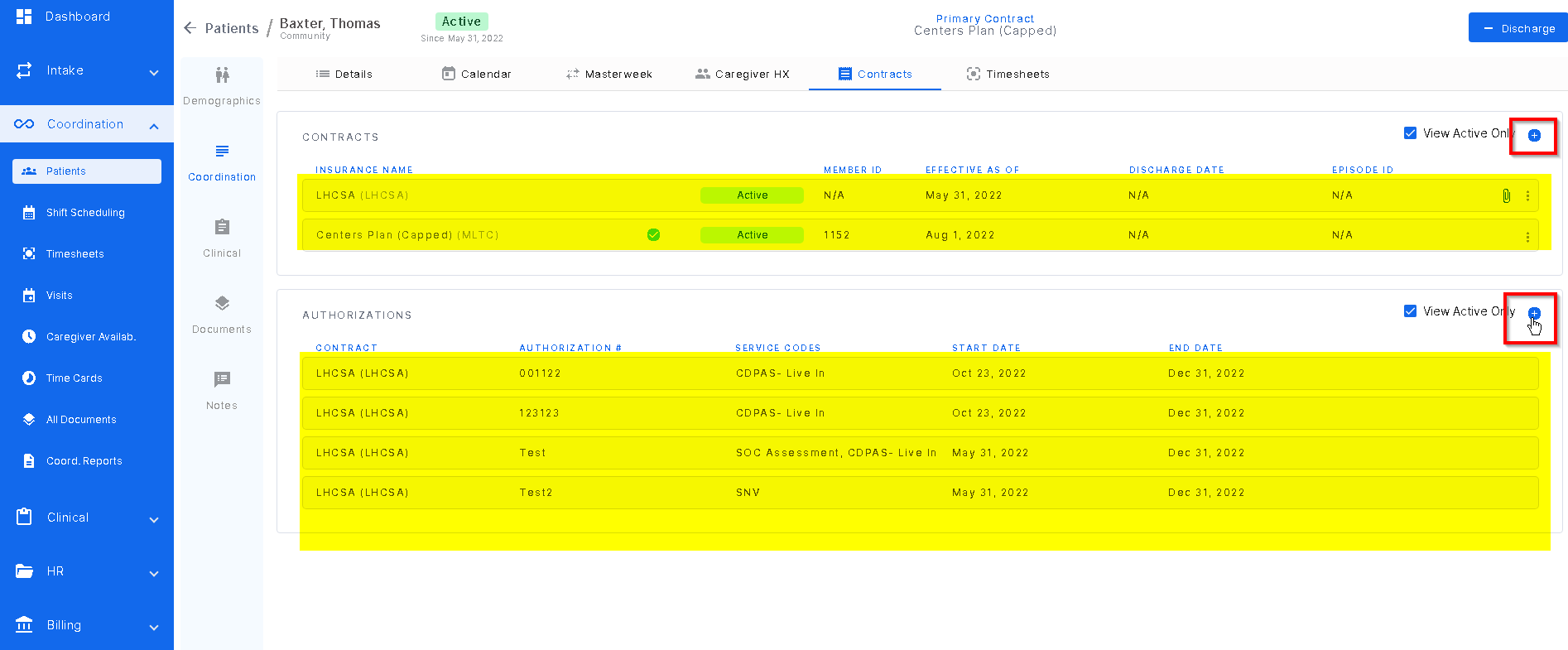
Patient insurance and contract information can be found within a patient profile, click coordination, and click "contracts'.
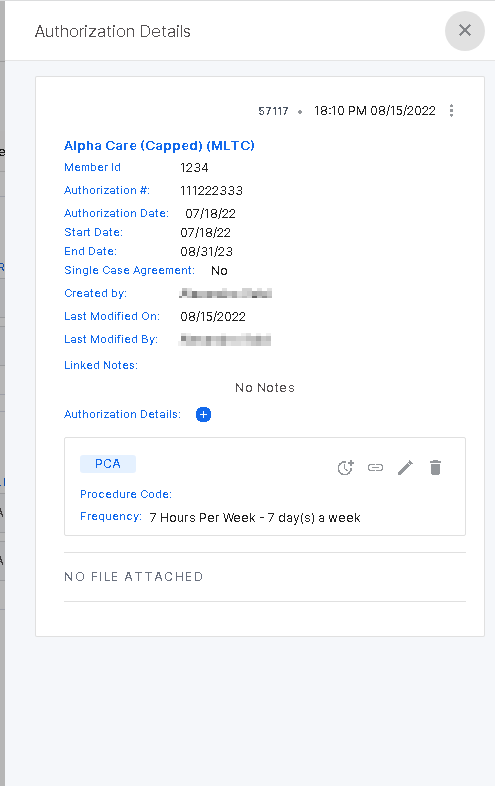
Clicking the row that the authorization and/or contract is in will cause a slideout to appear. The slideout will show additional information. For example, when the authorization or the contract was created, by who and service frequency, etc.
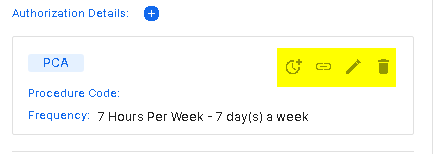
Under the authorization slideout, there are icons in the authorization details box allowing users to edit or add information. These icons in order left to right include:
- Linking an authorization to a shift- this is for the patients in a facility and is an easy way to make sure that an authorization is linked to the visits on the patient calendar.
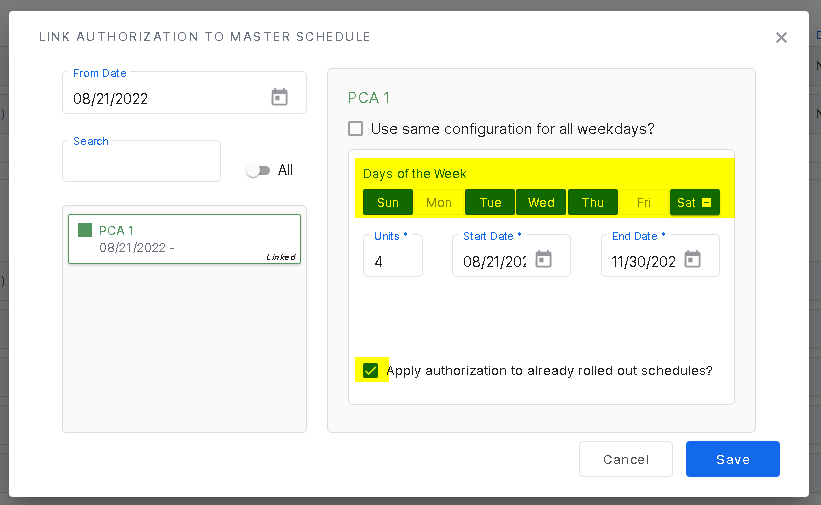
- Linking an authorization to a master schedule- this is for the patients receiving home care and have masterweeks. It has the same function as linking to a shift and ensures that the visits on the patient calendar have an authorization linked.
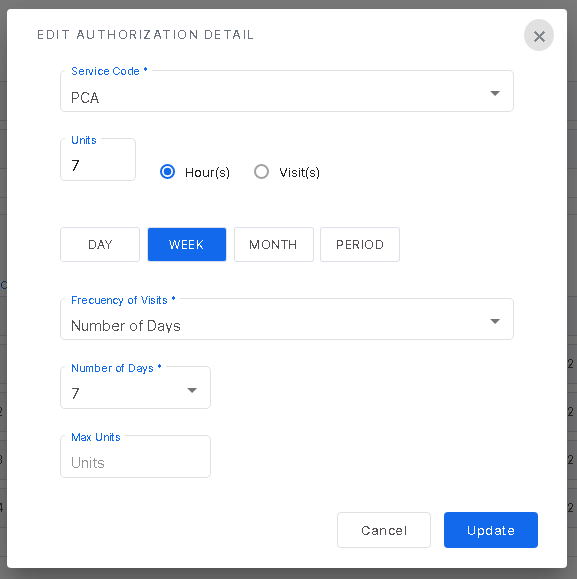
- Edit an authorization detail- this function allows users to edit the service code, units, service frequency and max units.
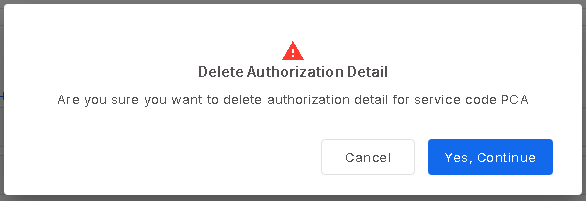
- Delete authorization detail- this function will delete the authorization detail.
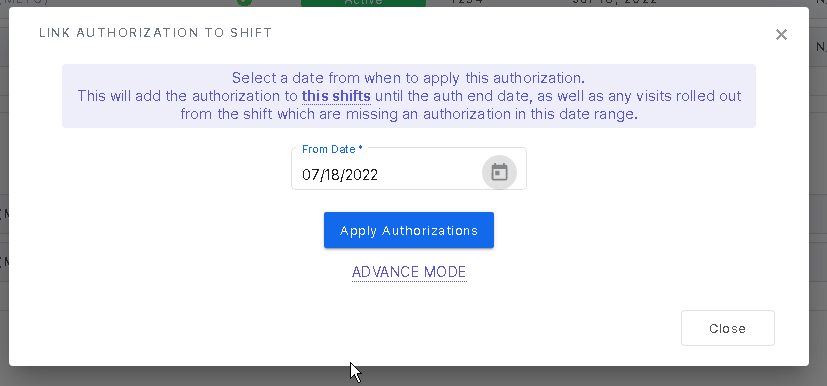
Clicking on the first icon, this screen will pop up. Enter the date from which you'd like to link the authorization to shifts. Click "apply authorization".
Clicking on the second icon will open up this screen.
Enter the date from which you'd like to link the authorization.
Select the days of week to apply it to.
If you want the authorization to apply to schedules that already rolled out, check "Apply authorization to already rolled out schedules"
Click Save
Clicking the third icon will open up the edit screen where users can edit service code, service frequency, frequency of visits, etc.
Selecting the fourth and final icon will delete the authorization details.
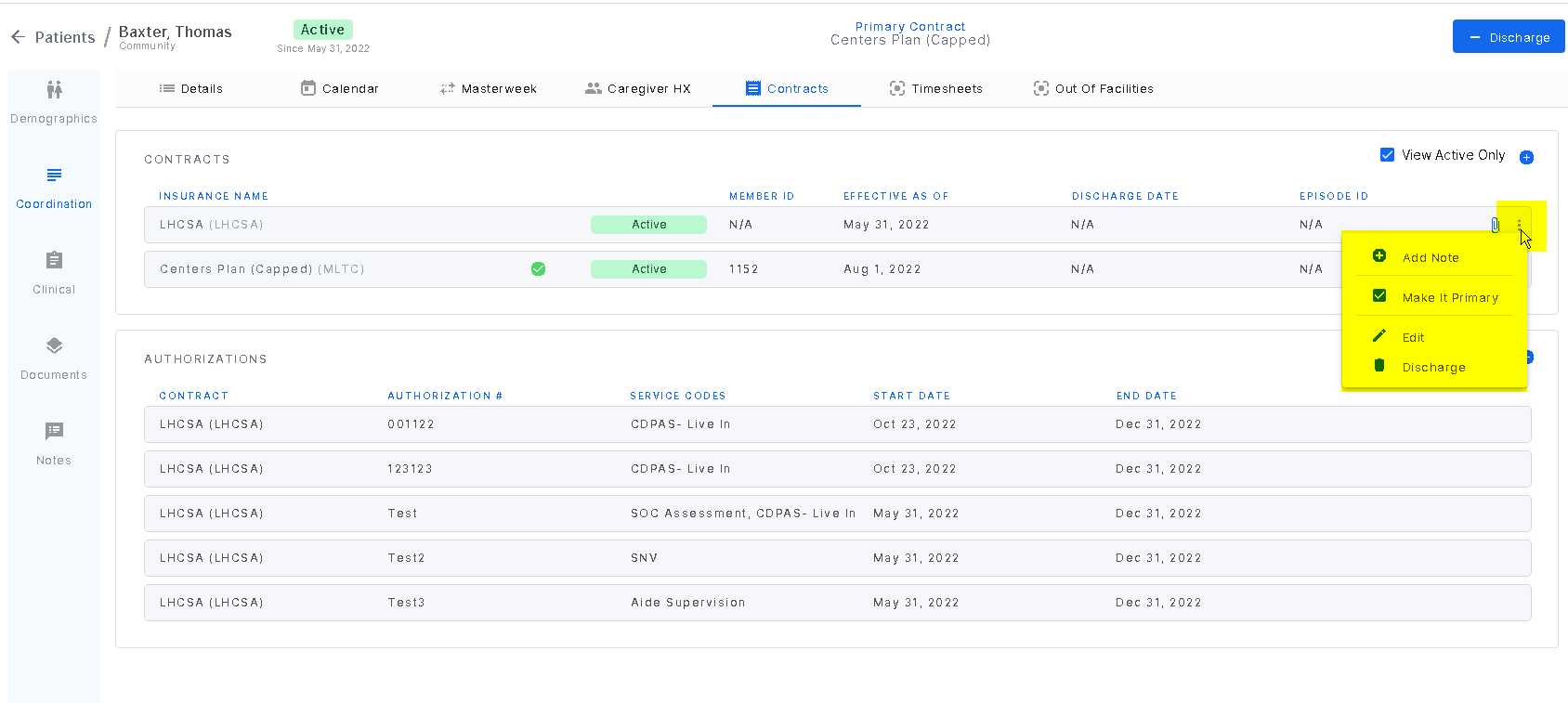
The three dots on the end of the row of a contract will display the following options: add note (this note will display in the slideout when clicking on the contract), make primary (this will be the primary contract the system will pull information from), edit, and discharge.
Users can also add multiple contracts and authorizations here simply by clicking the "plus" icon to the right of the contracts/authorizations.
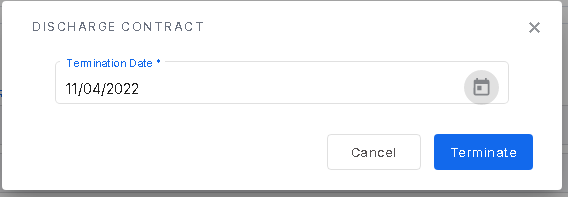
To discharge a contract, select discharge and enter the date of the discharge. Once the dates are entered, select "terminate".
Was this article helpful?
That’s Great!
Thank you for your feedback
Sorry! We couldn't be helpful
Thank you for your feedback
Feedback sent
We appreciate your effort and will try to fix the article