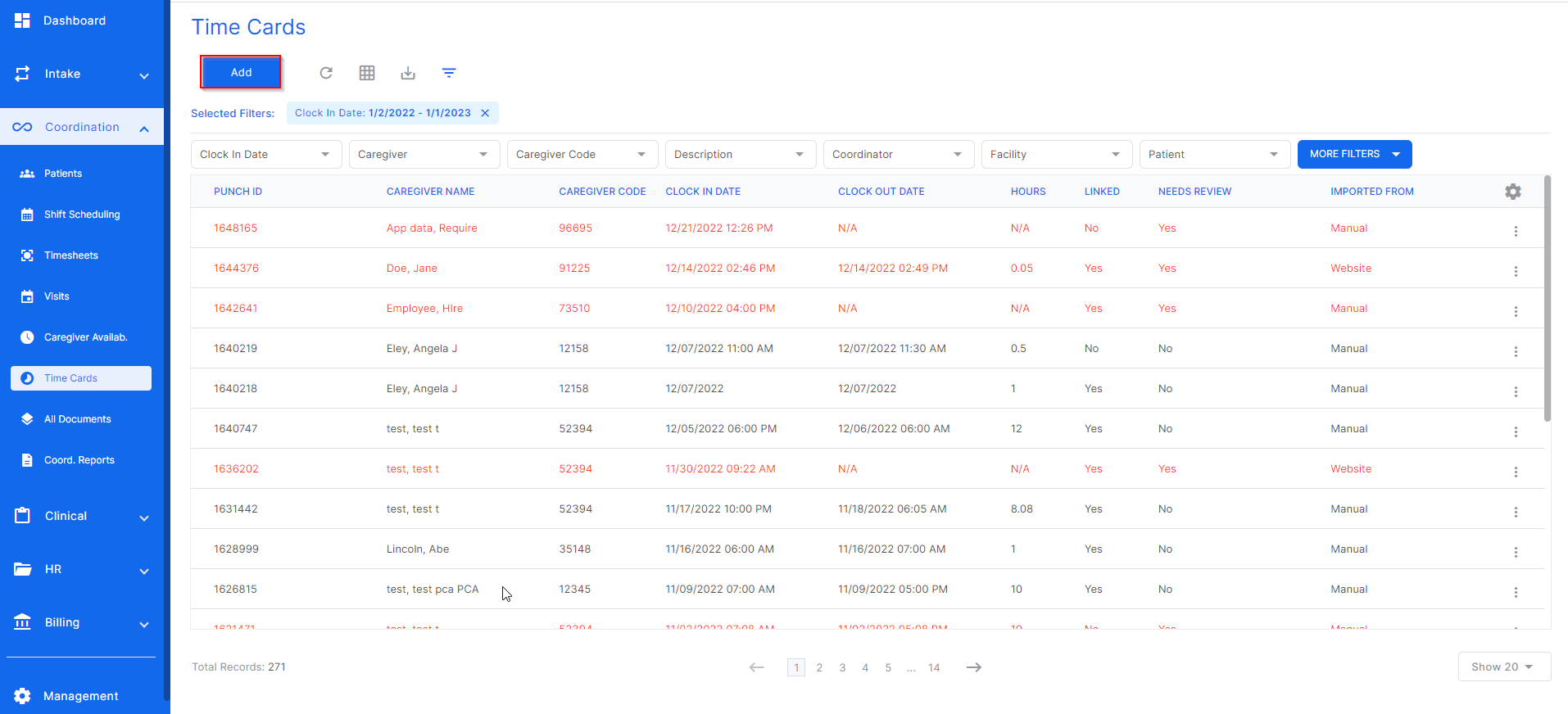
In the instance a manual timecard would need to be added, go to the Coordination drop down, select the timecards tab, and click the "add" button at the top left of the screen.
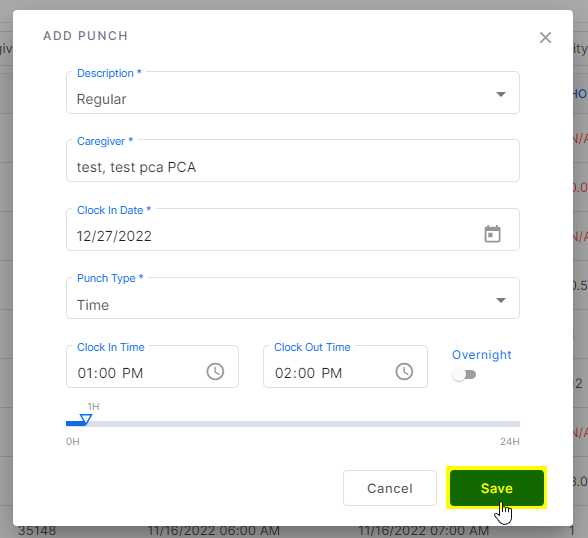
This screen will open so the user can enter the timecard details. Once all details are entered, click "save".
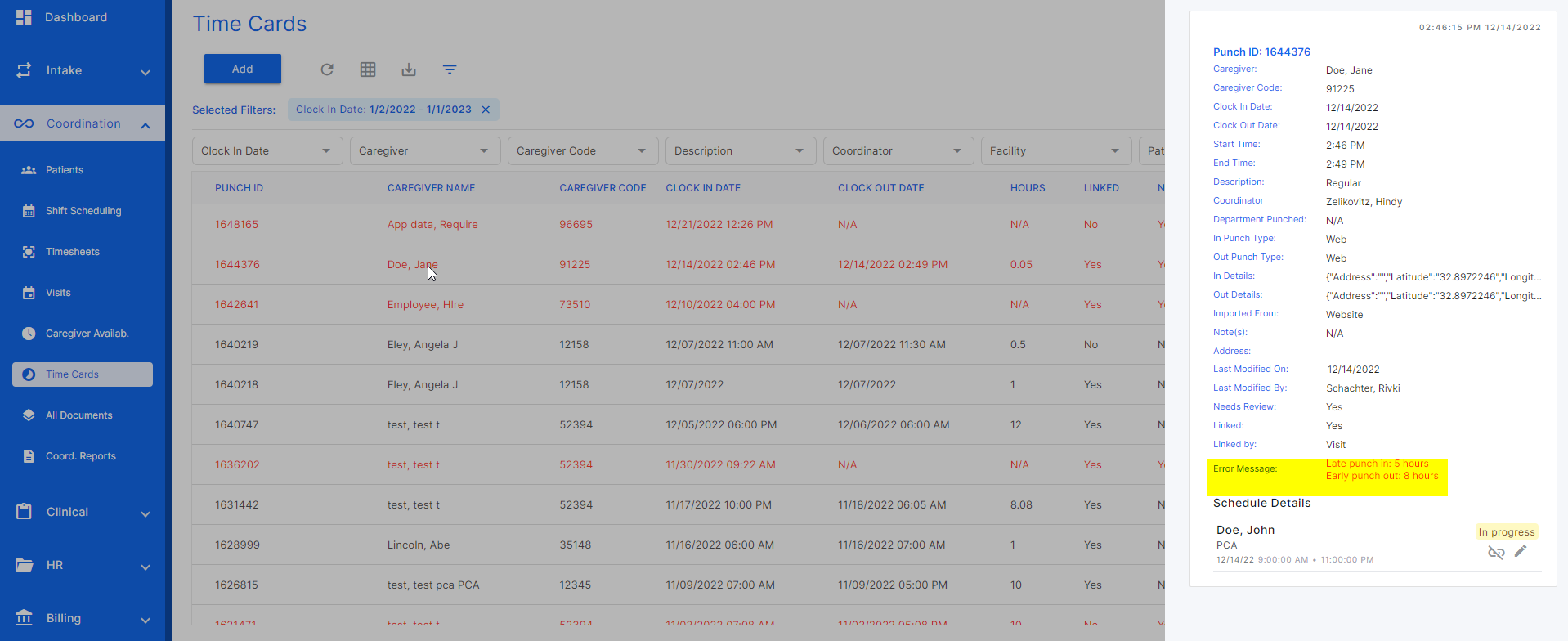
A timecard that does not match a calendar visit will show the color red in the timecard list. Clicking on the timecard will display the slideout screen which will show the error message that is marking the timecard as "needs review".
To edit the timecard to match the visit and to review the timecard, click the three dots at the end of the desired timecard row and click "edit".
Was this article helpful?
That’s Great!
Thank you for your feedback
Sorry! We couldn't be helpful
Thank you for your feedback
Feedback sent
We appreciate your effort and will try to fix the article