There are multiple different functions for editing a shift schedule and splitting a shift in Monthly schedules view.
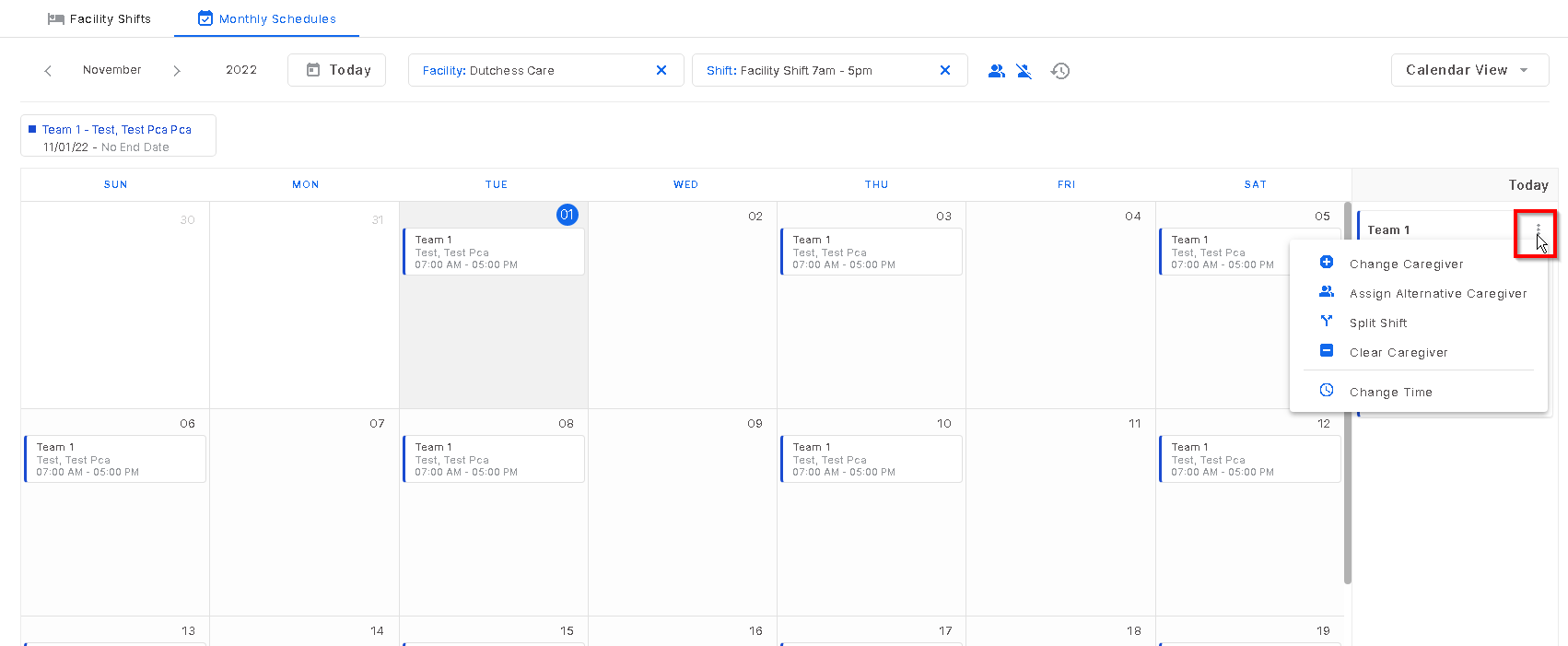
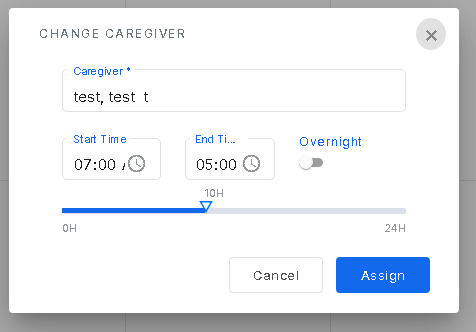
To change a caregiver for that specific day, select the day and on the side bar, click the three dots and select "change caregiver". Once the change caregiver screen opens, enter the new caregivers name. The times can also be changed here as long as the times are within the times the shift runs. Once complete, select "assign".
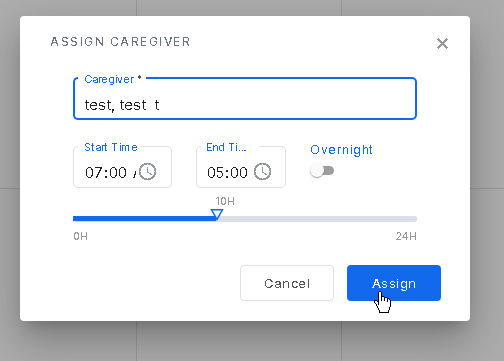
To assign a caregiver to a specific day that currently does not have a caregiver assigned, select that day of the week and on the side bar, click the three dots and select "assign caregiver". Once the assign caregiver screen opens, enter the caregivers name. This caregiver will now roll out as assigned to that team until removed. The times can also be changed here as long as the times are within the times the shift runs. Once done, select "assign".
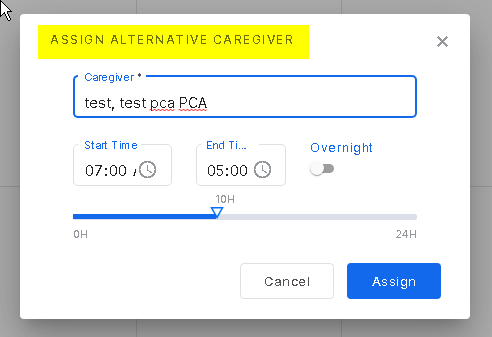
To assign a new caregiver to a team that will only be assigned for that specific day that will not roll out in the future, select "assign alternative caregiver". Once the edit screen opens, enter the caregivers name. The times can also be changed here as long as the times are within the times the shift runs. Once done, select "assign".
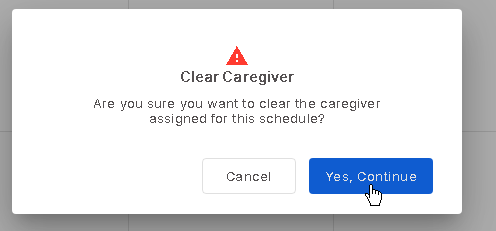
When a caregiver no longer is working on that team for that specific day, there is the ability to clear the caregiver from the Monthly Schedules view. Go to the day of the week that needs the caregiver cleared on and click on it. Click the three dots on the visit that shows on the side bar and select "clear caregiver". When the clear caregiver screen comes up, click "yes, continue" to complete clearing the caregiver.
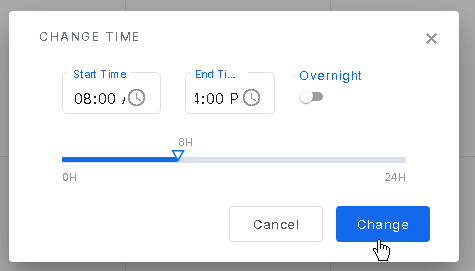
In the case that a team is running for different times than the shift is running, go to the day of the week that the times need to be changed and click on it. Go to the side bar and click the three dots. Select "change times". As long as the times that are being changed are still within the hours the shift runs, enter the new times this team will run and click "change".
Was this article helpful?
That’s Great!
Thank you for your feedback
Sorry! We couldn't be helpful
Thank you for your feedback
Feedback sent
We appreciate your effort and will try to fix the article